Connect your Synchrony™


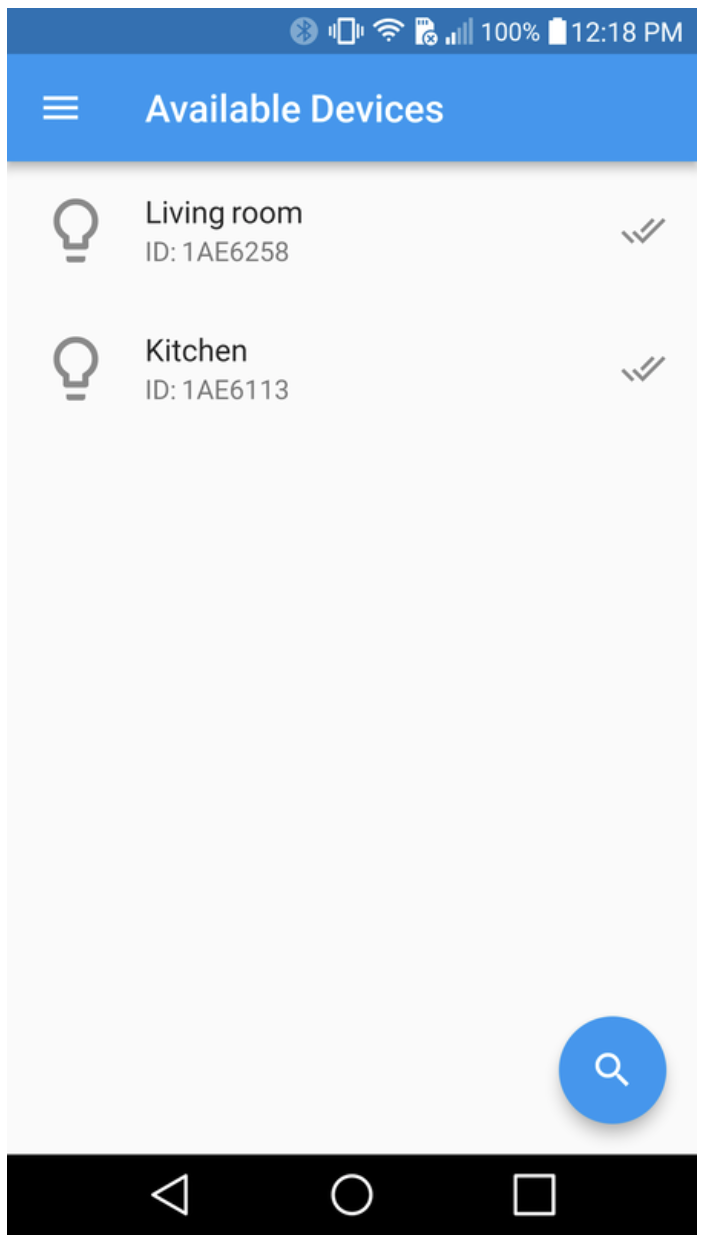
​The Synchrony™ Remote Control App connects to the Synchrony™ LEDs controller via Bluetooth.
Follow the steps below to pair your Android device with Synchrony™ LEDs controller.

1. Turn on the controller
2. Wait until the green status light ('system enabled') turns on on the controller
3. Press and hold the reset button on the controller for 5 seconds
4. In the app, press the search button (magnifying glass icon) at the bottom of the 'Available Devices' page
Tap the device name to connect and access 'My Synchrony' page


Note: Closing the app by pressing the Android back button while on 'Available Devices' page disconnects all controllers connected to the app.

Control your Synchrony™


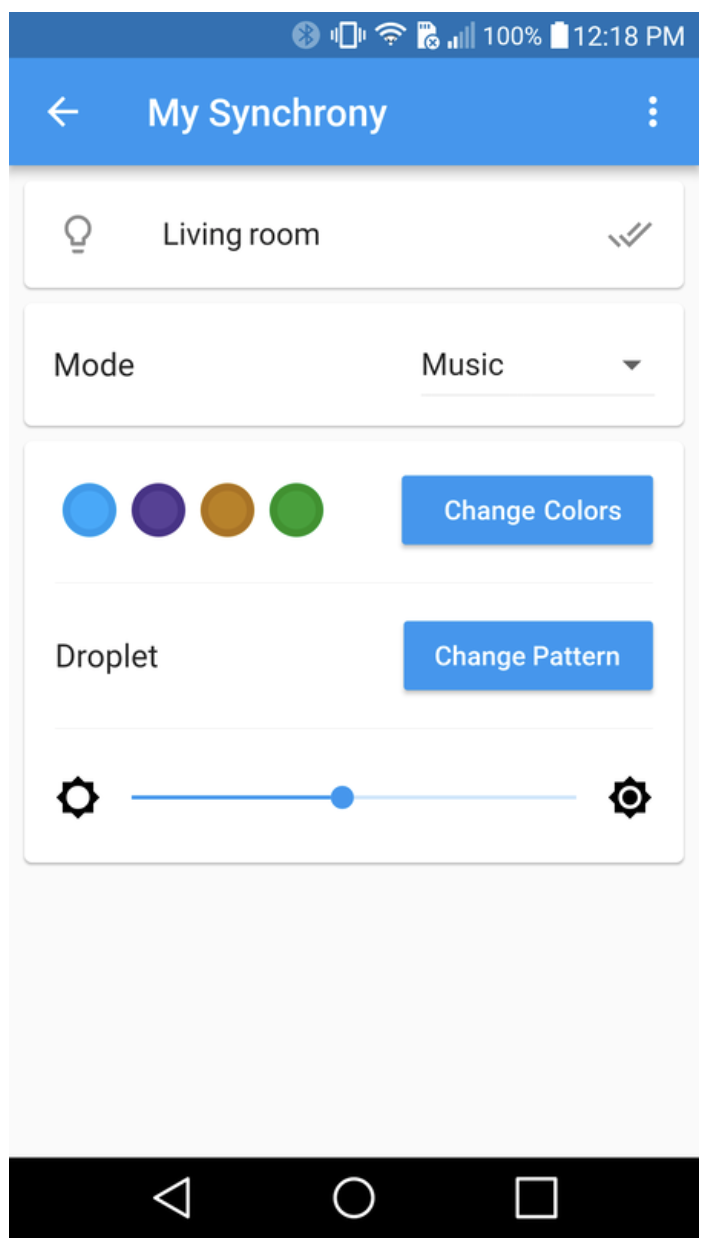
​In 'My Synchrony' page, you can adjust the settings on the selected controller.
Mode: You can choose from multiple display modes: Music, Color Cycle, Pattern Demo and Ambient.

Colors: Shows current color set. Press 'Change Colors' to select, add and edit color sets.
Pattern: Shows current visualization pattern. Press 'Change Pattern' to choose a different pattern and turn background lighting on and off.
Brighness: Use the slider to adjust the overall brightness of LED lights.
Speed: Use the slider to adjust the speed of pattern display (available for Color Cycle and Pattern Demo modes only)

From the dropdown menu on top right, you can

  • Edit controller name
  • Refresh the app with current controller settings
  • Disconnect or forget controller
  • Reset controller to factory setting.

Customize your color


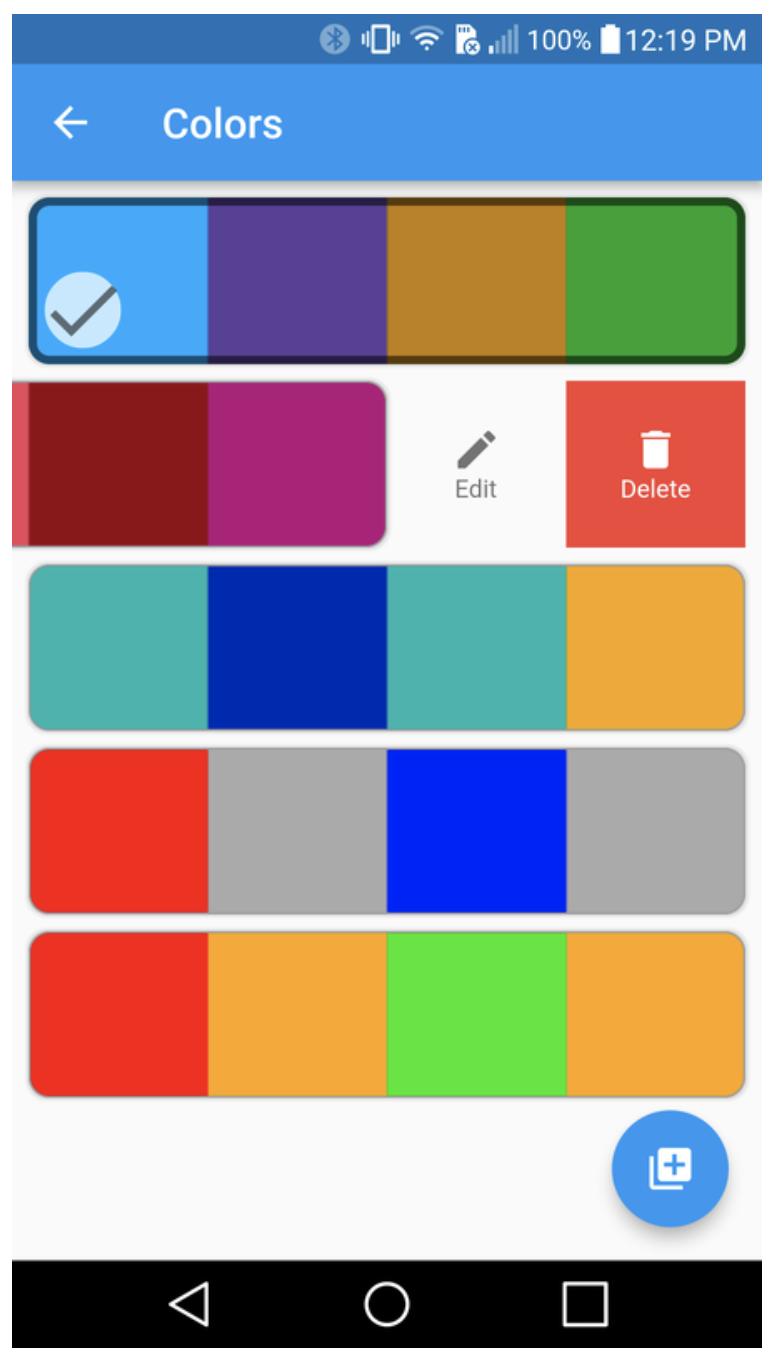
​In "Colors" page, you can

  • Tap to select a color set for LED display
  • Double tap to edit individual colors
  • Long press to delete a color set
  • Slide to either edit or delete a color set
  • Press (+) button to add a new color set

Choose your pattern


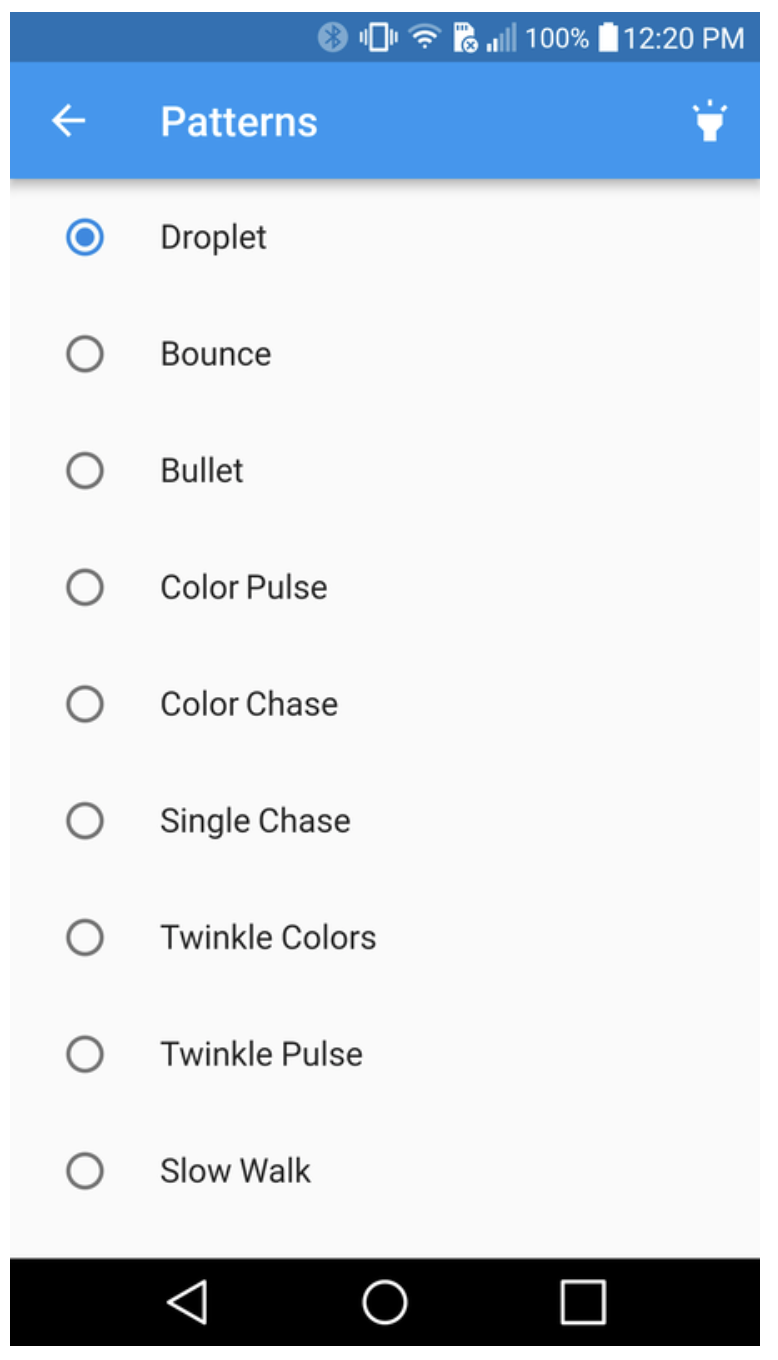
​In 'Patterns' page, you can choose from nine available patterns: Droplet, Bounce, Bullet, Color Pulse, Color Chase, Single Chase, Twinkle Colors, Twinkle Pulse, and Slow Walk.
You can also turn background lighting ('Backlight') on and off by pressing the lamp icon on top right (only Droplet, Bounce and Bullet patterns are affected).

Troubleshooting


The app says "Connection failed"Go back to the 'Available Devices' page and try connecting again. Depending on the Bluetooth connection of your mobile device, it may take a few tries. If you cannot connect after several attempts, do one of the following:

  • Press the reset button on the controller for 5 seconds and refresh the list
  • Restart the controller by turning it off and on and follow the connection procedure described above


My controller does not appear on the 'Available Devices'page

The controller may be paired with another mobile device. You can make the controller available for pairing by doing one of the following:

  • Disconnect the controller from the previously paired app (select 'Disconnect' or 'Forget Device' from the dropdown menu on the 'My Synchrony' page) and refresh the 'Available Devices' list of the app you want to connect
  • Press the reset button on the controller for 5 seconds and refresh the 'Available Devices' list
  • Restart the controller by turning it off and on and follow the connection procedure described above


LED patterns are not synchronized to music

Make sure the controller is in the 'Music' mode. You can check this on the 'My Synchrony' page of the mobile app. You may need to refresh the app (select 'Refresh' from the dropdown menu on the 'My Synchrony' page) to update the app with the current controller settings.If you want the controller to listen through its internal microphone, make sure no audio cable is plugged into the AUX port.


support@oscilloscape.com